
Import your dynasty from PS5, Xbox or PC
Move your dynasty data into Dynasty Central in about 5 minutes.
Before you start
- A Dynasty Central account
- Your game and a phone or computer
- For PS5, link your console to PlayStation App and turn on Auto-Upload for new captures.
PS5
- Hold the Create button to capture a dynasty menu.
- On your phone, open PlayStation App, then Library and Captures.
- Choose the screenshot and tap Download.
- Open Dynasty Central and go to Sync Data.
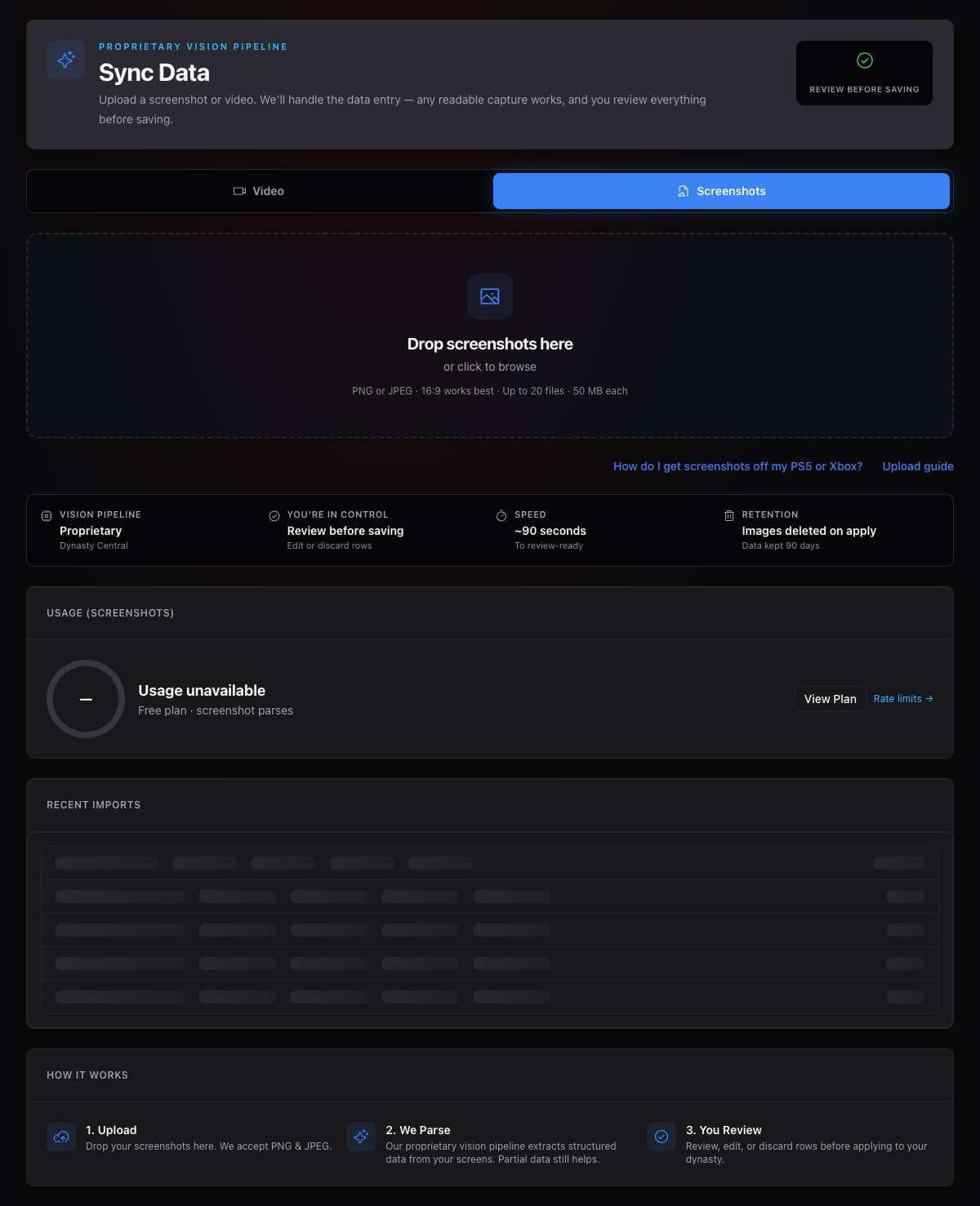
- Choose Screenshots and upload your picture.
- Review the rows and select Confirm Import.
Xbox Series X|S
- Press the Share button to capture a dynasty menu.
- On your phone, open the Xbox app, then Library and Captures.
- Choose the screenshot and tap Save.
- Open Dynasty Central and go to Sync Data.
- Choose Screenshots and upload your picture.
- Review the rows and select Confirm Import.
PC
- Take screenshots of your dynasty menus on your PC.
- Open Dynasty Central on your computer and go to Sync Data.
- Choose Screenshots and upload your pictures.
- Review the rows and select Confirm Import.
Phone video
- Record a slow video of one kind of dynasty menu on your TV.
- Open Dynasty Central on your phone and go to Sync Data.
- Choose Video and upload your recording.
- Review the rows and select Confirm Import.
What you should see
Your saved dynasty data appears in the app.
If it didn’t work
- PS5 captures are missing. Turn on Auto-Upload in your PS5 capture settings. Upload older captures manually from Media Gallery. Captures stay in the app for 14 days.
- The video is hard to read. Hold your phone steady, avoid glare and pause after each scroll.
- A row is wrong. Fix it on the review screen before saving.
Related articles
Last verified: 2026-11-09